How to Replace Microsoft Publisher for Your Church Bulletin
If you've made the bulletin in Publisher for years, this fall has been rough. Microsoft removed Publisher from Microsoft 365 on October 1, 2026, and support for the standalone versions ended on October 13, 2026. Older standalone copies still open, but they won't get updates. Here's a calm, step-by-step way through it.
Step 1: Save your old files now
Most other programs can't open .pub files properly. Before you lose access to Publisher on any computer:
- Open each bulletin, newsletter and form you reuse.
- Choose File > Save As (or Export) and save a PDF copy.
- Keep the original .pub files too, in one clearly named folder.
- Back the folder up to your church's shared drive.
Microsoft's own suggestion is to open the PDF in Word to get a starting point. The layout may shift, so treat it as a rough draft, not a finished bulletin.
Step 2: Pick the right replacement for you
There isn't one right answer. It depends on how your bulletin works.
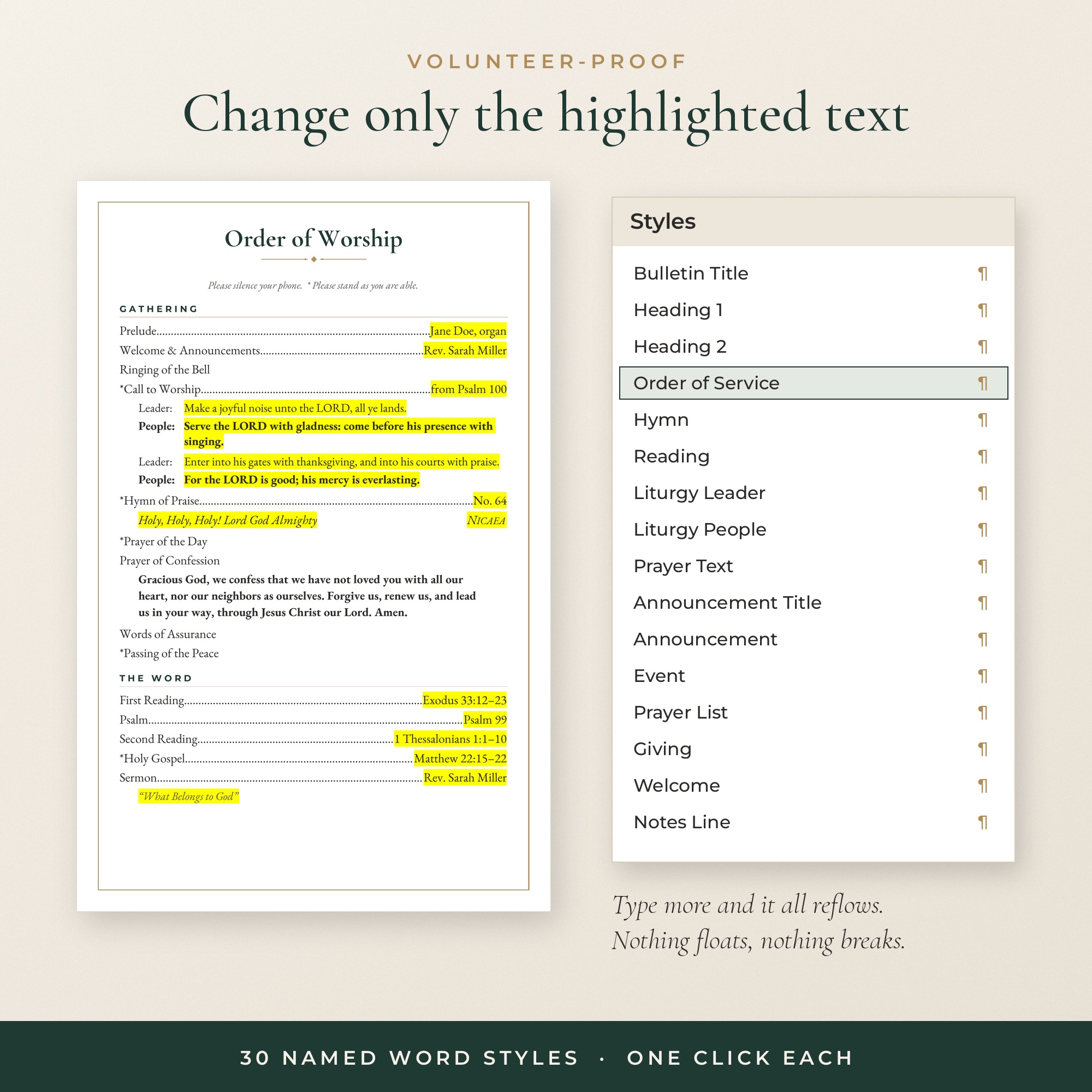
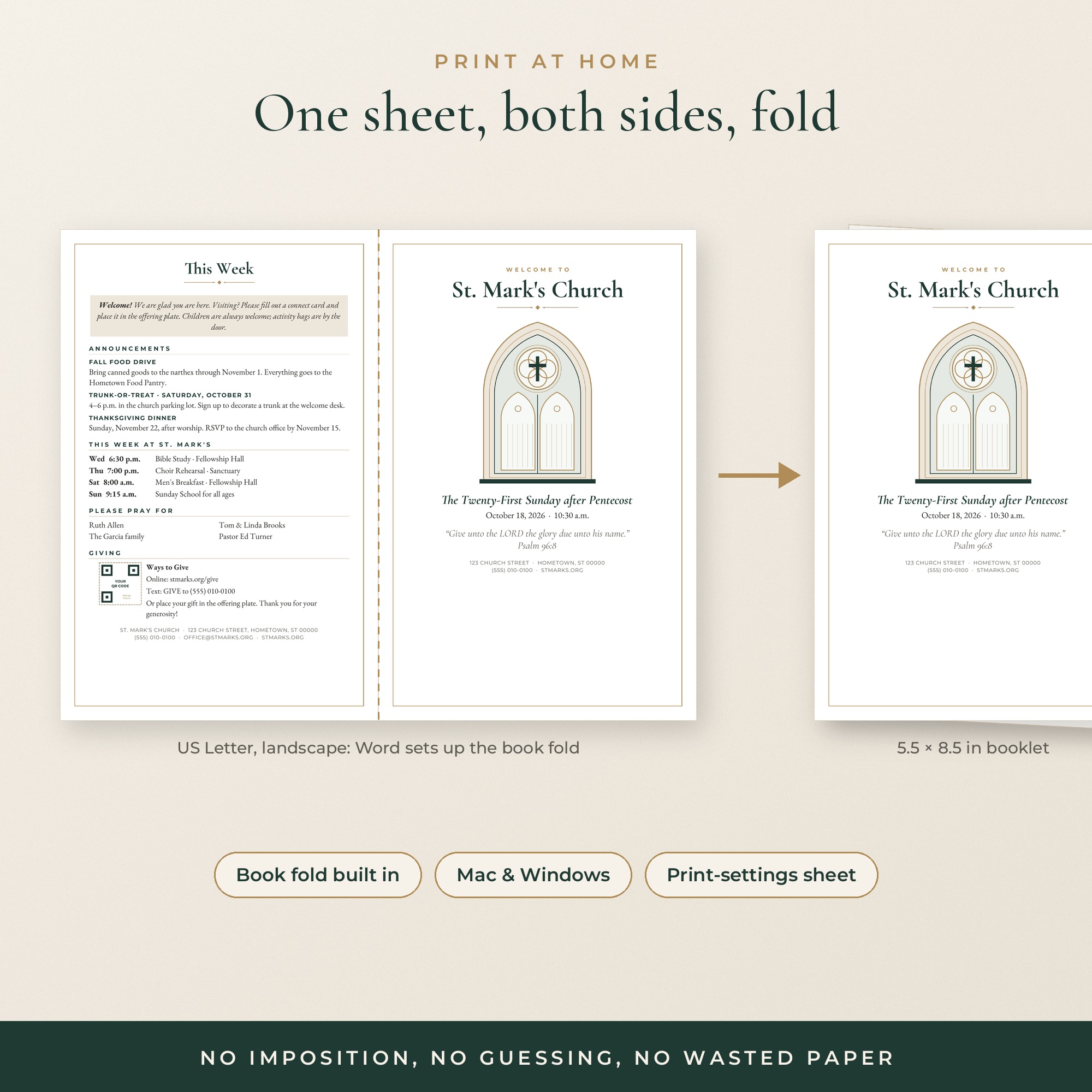
Microsoft Word is the best fit if your bulletin is mostly text: order of service, announcements, prayer lists. You probably already know it. The trick is using Styles (so every heading looks the same) and Book Fold page setup (so it prints as a folded booklet). Without those, Word can feel like a fight with text boxes.
Canva is great for visual pieces: covers, inserts, slides and social posts. It's easy to learn, and many churches can get Canva Pro free through Canva for Nonprofits (check Canva's current eligibility rules). Long, text-heavy bulletins can feel slow to edit in it.
Google Docs is free and easy to share with a backup volunteer. Layout control is basic, but a simple one-column bulletin works fine.
Affinity, Scribus or LibreOffice are closest to Publisher in features, but they take the most time to learn. They're best if you enjoy design software.
A practical mix many church offices land on: Word for the bulletin, Canva for everything visual.
Step 3: Rebuild once, the right way
The goal is to set it up once and then spend your weekly time typing, not formatting.
- Make a template file, not a bulletin. In Word, save it as a .dotx so every new week starts clean.
- Set up Styles for Heading, Order of Service, Announcement and Small Print.
- Save repeated blocks (the welcome paragraph, the giving box, staff contacts) so you can drop them in.
- Create a large-print version at the same time. It's much easier now than later.
- Write a one-page "how to do the bulletin" note so someone can cover for you.
Step 4: Do a test print
Print one copy double-sided and folded before Sunday. Check margins, page order and whether the fold lands in the right place. Every printer is a little different.
Common questions
Can I keep using my old Publisher? If you have a standalone copy, it will keep opening for now, but it won't get security updates.
Will my bulletin look the same? Close, if you rebuild it carefully. Many people find it's a good moment to simplify.
How long will this take? Rebuilding takes an afternoon or two. After that, a good template should make the weekly bulletin quicker than before.
Free help
Grab our free Publisher Migration Checklist and starter bulletin, and see the full Publisher Help section for step-by-step guides.
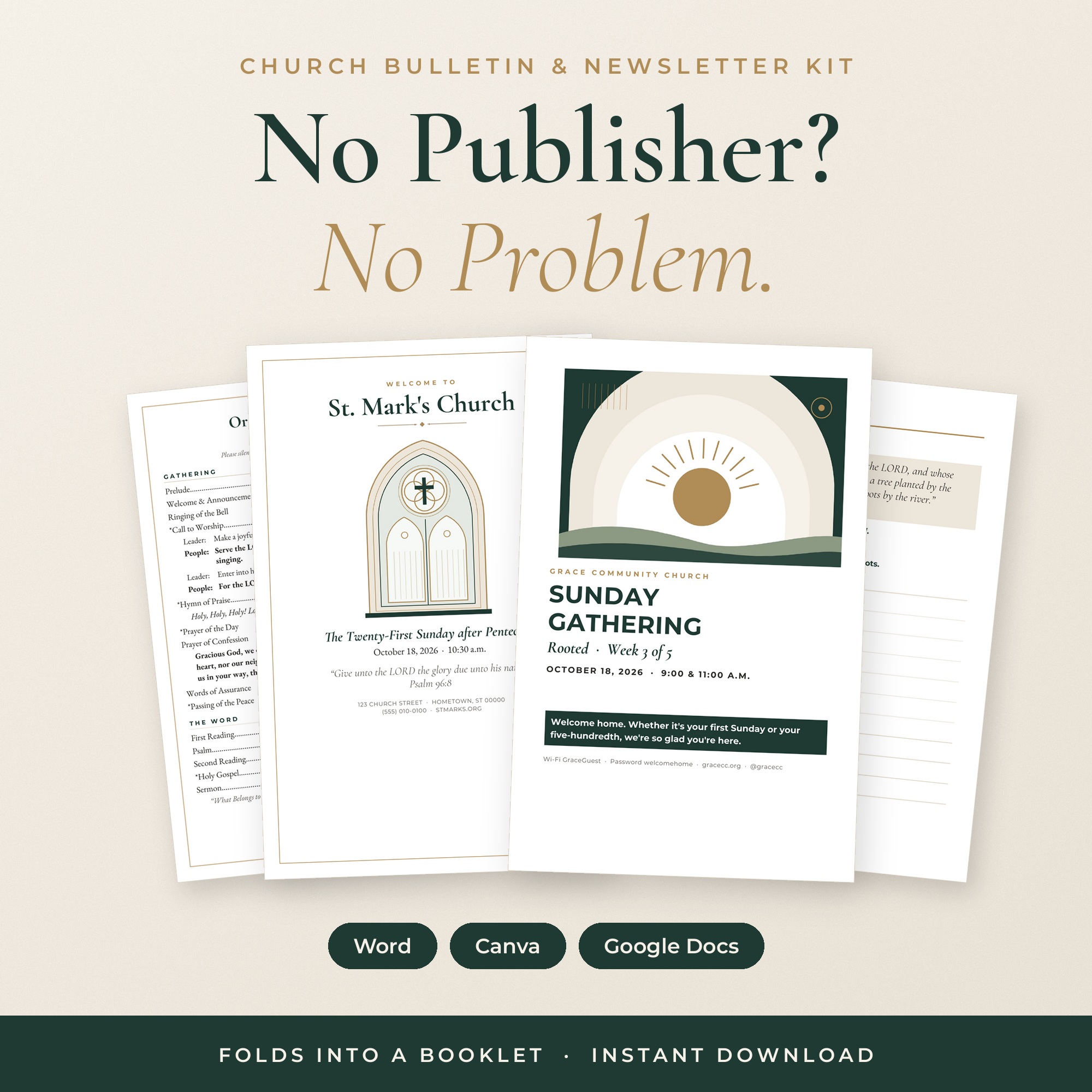
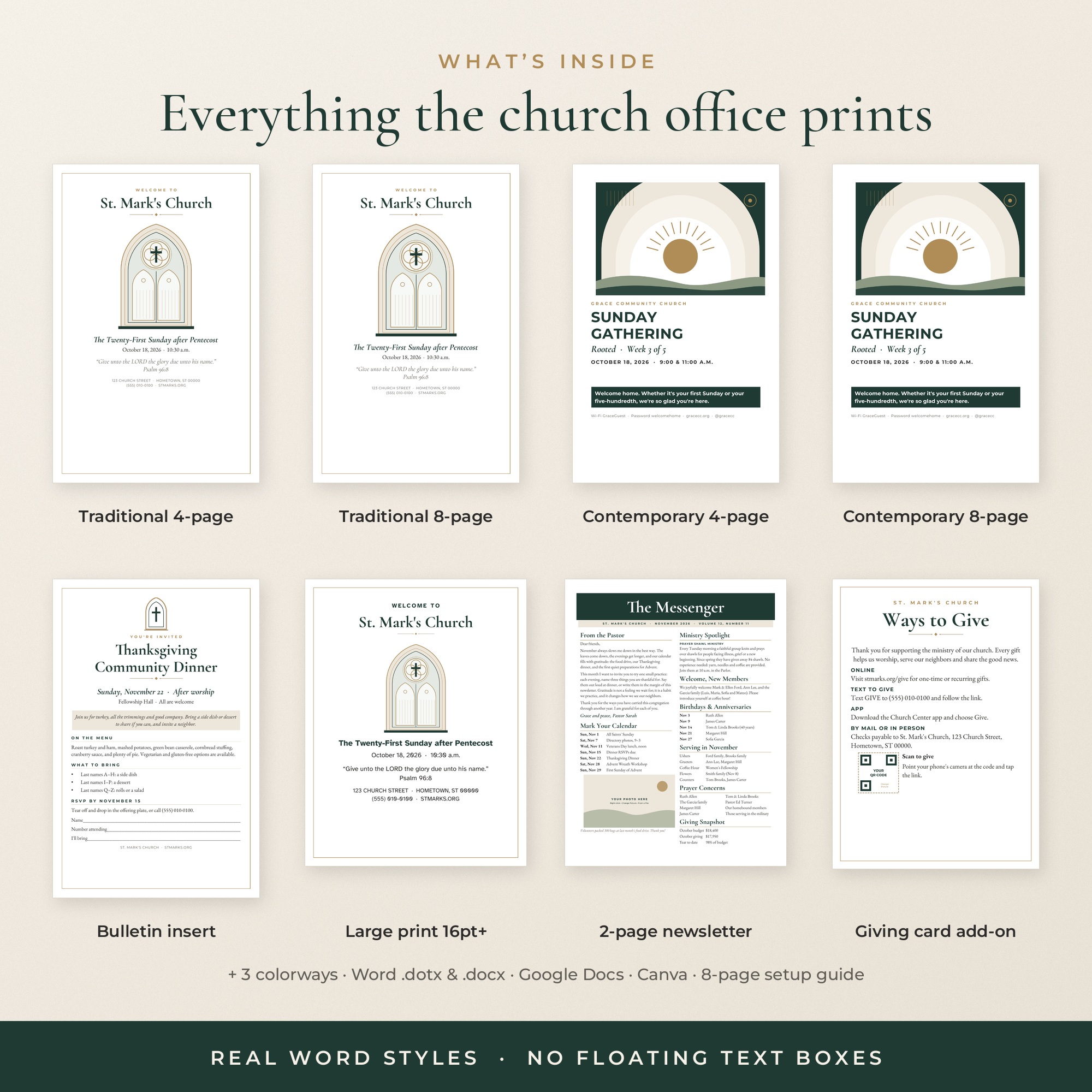
Want it already built? Our Publisher-Free Bulletin & Newsletter KitComing soon gives you the same design in Word (with real Styles and book fold), Canva and Google Docs, plus a large-print edition. If you'd rather hand it off, our Booklet Fill-In / Publisher RescueComing soon service rebuilds your current bulletin from a PDF.